How to Clean Messy Excel and CSV Data Fast
Most analysis time goes into cleaning, not analysis. The export from the ERP has a title row on top, the amounts are text, the dates are in three formats, "North" is spelled four ways and half the cells end in a space you cannot see. This guide covers the five problems that cause most of the trouble, how to fix each in Excel, and how to stop doing it by hand every month.
Step zero: keep the original
Before you change anything, save a copy of the raw file or work on a separate sheet. Cleaning mistakes are easy to make and hard to spot later. Better still, use a method that leaves the source untouched and records each change as a step.
1. Numbers stored as text
Symptoms: SUM returns 0, values align left, a green triangle appears in the corner, pivots count instead of summing.
Causes: currency symbols ($1,200), percent signs, thousands separators that do not match your regional settings, a space used as a thousands separator ("1 200"), a leading apostrophe, or a single "N/A" in the column.
Fixes in Excel:
- For a clean column, select it and use the warning icon > Convert to Number.
- Data > Text to Columns > Finish converts a whole column in place.
- With symbols, use a helper column:
=VALUE(SUBSTITUTE(SUBSTITUTE(A2,"$",""),",","")). Wrap it inIFERROR(...,"")to see which rows refuse to convert. - Spaces inside the number: also substitute
CHAR(160), the non-breaking space that web exports love.
2. Dates that are not dates
Symptoms: dates sort alphabetically, a timeline chart is impossible, 03/07/2026 means March in one file and July in another.
Fixes in Excel:
- Text to Columns > Delimited > Next > Next, then choose Date with the right order (MDY or DMY). This is the most reliable way to fix a whole column whose day and month order you know.
=DATEVALUE(A2)works when the text matches your Windows date format, and fails silently when it does not.- For mixed formats, find a value with a day above 12 (13/04/2026). If one exists, the column is day first.
Always check a few converted dates by eye. A swapped day and month produces valid but wrong dates, and nothing will warn you.
3. Duplicates
Decide what a duplicate means before deleting anything. Two rows identical in every column are almost always safe to remove. Two rows with the same order ID but different amounts may be a correction, not a duplicate.
- Data > Remove Duplicates, then tick only the columns that define a duplicate (for example Order ID). Excel keeps the first row it finds.
- To review first, add
=COUNTIF($A$2:$A$5000,A2)>1as a flag and filter on TRUE. - Trim spaces and fix case before removing duplicates, or "Acme " and "acme" will both survive.
4. Trailing spaces and invisible characters
Symptoms: lookups fail on values that look identical, filters show "North" twice, a pivot has two rows for one region.
=TRIM(A2)removes spaces at the start and end and collapses double spaces inside.=CLEAN(A2)removes non-printing characters such as line breaks from copied text.- TRIM does not remove the non-breaking space. Use
=TRIM(SUBSTITUTE(A2,CHAR(160)," ")). - Check with
=LEN(A2): if the length is longer than the text you see, something invisible is there.
5. Inconsistent names and spellings
"north", "NORTH", "North" and "Nrth" are four regions to Excel. Some of this is mechanical and some needs judgement.
- Case:
=PROPER(A2)or=UPPER(A2)gives one consistent form. - Known variants: build a two-column mapping table (Raw, Clean) and look values up with XLOOKUP. This is boring and it works, and the table documents your decisions.
- Typos and company-name variants ("Acme Corp." vs "ACME Corporation"): use fuzzy matching. We wrote a separate guide on how to fuzzy match two lists in Excel.
Two more that catch everyone
- Banner rows above the header. System exports often put a report title and a "printed on" line above the real column names. Delete them before anything else, or every tool will use the wrong row as headers.
- Leading zeros. Opening a CSV by double-clicking turns ZIP codes and product codes like 00123 into 123. Import with Data > From Text/CSV and set those columns to Text. Once the zeros are lost, they cannot be recovered from the file you opened.
Make it repeatable with Power Query
If the same export arrives every week or month, doing the steps above by hand is the real cost. Power Query records each step (remove top rows, change type, trim, replace values, remove duplicates) and replays it when you click Refresh on next month's file. It takes an afternoon to learn the basics and pays back quickly.
Or clean it in one scan
QikAnalytix, the Windows desktop app we build, has a data cleaning wizard aimed at exactly these problems. Load the Excel or CSV file and open Transform > Data cleaning. One scan finds empty cells, duplicate rows, whitespace in values, mixed case variants, numbers stored as text and dates stored as text, and counts every case. It also shows a data quality score: the share of cells with no issue.
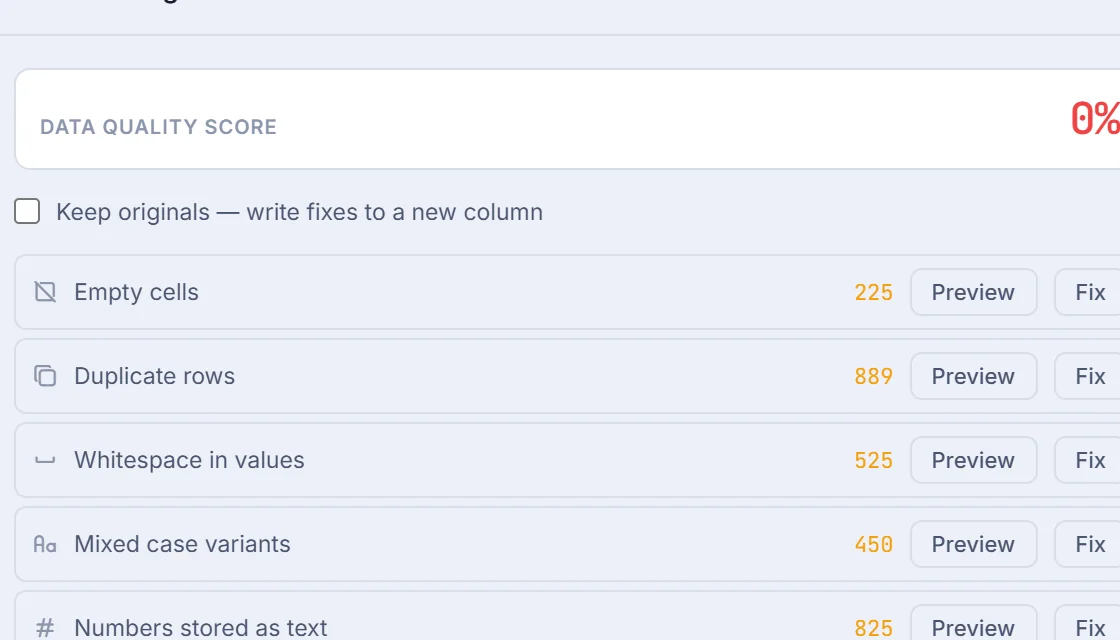
Click Preview on any issue to see before and after samples from your own rows, then Fix it or click Fix all. Some examples of what it does:
| Issue | Before | After |
|---|---|---|
| Whitespace in values | " North America " | "North America" |
| Mixed case variants | north, NORTH, North | North everywhere (the most common spelling wins) |
| Numbers stored as text | "$1,200", "45%", "1 200" | 1200, 45, 1200 as a number column |
| Dates stored as text | "03/07/2026", "7-Mar-26" | 2026-03-07 as a date column |
| Duplicate rows | Two identical rows | One row (the first is kept) |
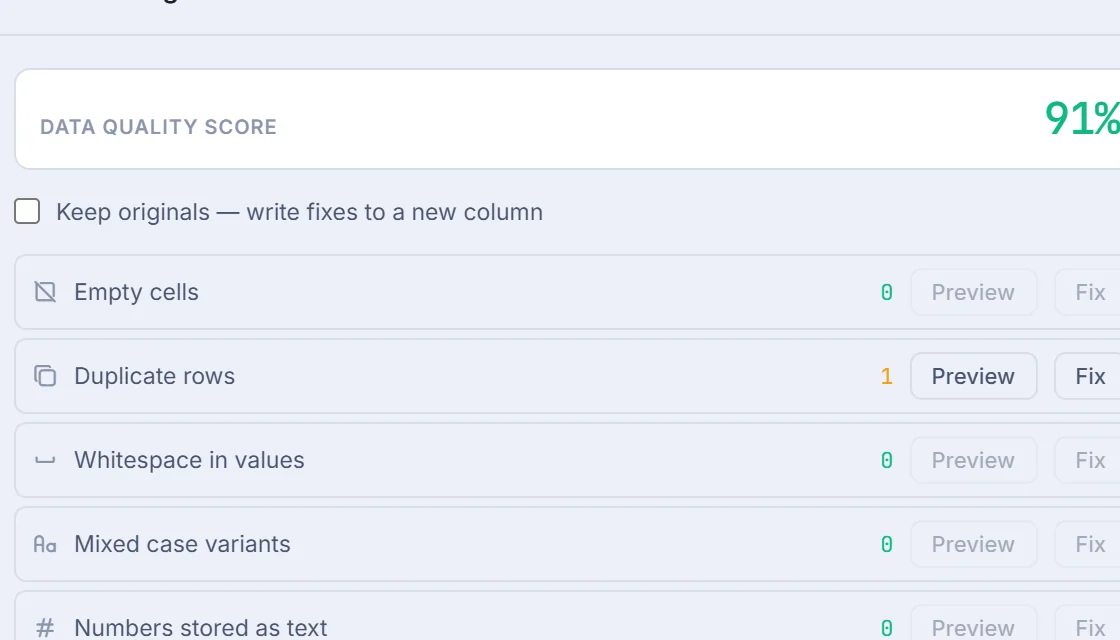
Tick Keep originals and the fixes go to new columns, with the original values kept next to them. Your file on disk is never changed. Every fix is recorded as a step, so when you replace the file with next month's export, the same cleaning runs again. Remove top rows, Delete rows by criteria, Replace values and a Remove duplicates step with your own compare columns are there for the cases the scan does not cover.
A few honest limits: the duplicate check in the wizard means identical in every column (use a Remove duplicates step to dedupe by an ID), filling empty number cells with 0 changes averages so skip it when blank means "unknown", and codes with leading zeros in a CSV are read as numbers, so keep those as Text cells in an Excel file.
A quick checklist
- Keep the raw file untouched.
- Remove banner rows and totals rows.
- Trim spaces and remove invisible characters.
- Fix case and known spelling variants.
- Convert numbers and dates, then spot-check them.
- Remove duplicates using the columns that define one.
- Fuzzy match the names that are still different.
- Save the steps so next month takes minutes.
FAQ
Why does Excel treat my numbers as text?
Usually because the export added a currency symbol, a thousands separator, a leading apostrophe, a stray space or a value like N/A. Remove those characters, then convert with VALUE, Text to Columns, or a Change Type step in Power Query.
How do I stop CSV files losing leading zeros?
Do not open the CSV by double-clicking. Import it with Data > From Text/CSV and set the column type to Text, or keep codes such as ZIP codes as Text cells in an Excel file. Once the zeros are gone, Excel cannot know how many there were.
How can I clean the same export every month without redoing the work?
Record the cleaning as steps that replay on refresh. Power Query does this in Excel, and desktop tools such as QikAnalytix record every cleaning fix as a step that runs again when you replace or refresh the source.
Have a messy export on your desk right now? Try QikAnalytix free for 7 days and clean it in one scan. It runs 100% offline on Windows, your original file is never changed, and no credit card is needed.